A modern, native bridge between macOS and the
E-mu SP-1200 — the 12-bit sampler that defined hip-hop's
sound. Receive, chop, audition, process through AU plugins, and send
samples over MIDI System Exclusive — without vintage editors or
hardware workarounds.
The drum machine that defined a sound, talking to your Mac.
The E-mu SP-1200, released in 1987, defined the texture of an entire
era of music — its 26.04 kHz, 12-bit grit became the signature
sound of golden-age hip-hop and remains in active use four decades
later. Its sample memory, however, lives behind a quirky front-panel
workflow and a MIDI Sample Dump Standard implementation from the era
when MIDI 1.0 was still new.
SP-1200 Sample Dump is a small, focused macOS app
that handles both ends of that protocol — pulling samples
off the SP-1200 to your Mac, and pushing audio files
onto any pad — using the byte-and-timing exact
specification published by E-mu in the SP-1200 owner's manual.
Nothing reverse-engineered, nothing approximated. The same dump
handshake the original software shipped with in 1987, implemented
natively on Apple Silicon.
Built around two transfers.
The whole app is two operations in opposite directions, with the
waveform editing and audition you'd expect from a modern audio
tool layered on top.
Receive
Pull a sample off the SP-1200
Click RECEIVE, then trigger a sample dump from the SP-1200's front panel. The full ACK/NAK handshake runs to completion with a live progress bar; on success a save panel opens with waveform preview, audition playback, and format/rate/channel options.
Send
Push any audio file to a pad
Pick a destination Bank (A–D) and Sound (1–8), choose any audio file in the system file picker, and the app handles all 12-bit conversion, resampling to the SP-1200's native 26.04 kHz, and the multi-packet upload with full handshake.
Region select
Trim to 2.5 s with zero-crossing snap
Each pad holds at most 2.5 seconds of audio. If your file is longer, the send-prep panel shows the waveform and lets you click anywhere to set a start point, then drag a 0.1 s-step end slider — both snapped to the nearest zero crossing — to define exactly which 2.5 s slice gets uploaded. The entire file is loaded into memory with no upfront truncation, so you can scrub through and pick any 2.5 s slice you want. Audition the 12-bit-quantized result before committing.
Audio formats
Read / write any common format
Loads WAV, AIFF, CAF, MP3, AAC/M4A, FLAC, and Apple Lossless via Apple's native AVFoundation. Saves received samples as WAV (16/24-bit, 32-bit float), AIFF (16/24-bit), FLAC, Apple Lossless, CAF, or headerless RAW — all at any sample rate, mono or stereo.
MIDI
Hotplug + persistent device routing
MIDI interfaces are detected as soon as you connect them — no relaunching, no manual rescan. Last-used MIDI IN and MIDI OUT device names are remembered between launches; if the same devices are still connected when you reopen the app, they're auto-selected. Configure once, ship.
Native macOS
Apple frameworks, no bundled libraries
Audio decoding, resampling, and encoding all use Apple's CoreAudio / AVFoundation stack. There are no statically linked third-party codecs, no GPL or LGPL components, no helper binaries — just a single signed app that runs in Apple's App Sandbox.
A complete workstation around the SP-1200.
Beyond the bidirectional transfer, the send-prep panel is a full
Mac-side editing environment for the SP-1200's signature workflow —
chop, audition, process, render, ship.
BROWSE mode
DAW-standard waveform editing
Toggle a pill below the wave to switch between the classic 2.5 s REGION editor and a free-form BROWSE mode that mirrors Pro Tools / Audacity / Sound Forge selection editing. Single click drops a cue line; click + drag paints a selection between any two points; marker handles drag independently. Double-click selects all; Loop Sel loops the selection. Real-turntable Stop preserves position — the next Play resumes from where audio stopped.
Chop bank
32 slots, A1–D8, with REC capture
Capture from the live deck position into a 32-slot bank with a single REC press — fire-and-forget, audition keeps spinning. Each slot remembers its own audio, region markers, pitch, and RPM. The bank's 10 s pitched-seconds budget mirrors the SP-1200's hardware memory. Save and load banks as a .sp12bank file with Float32 audio at native sample rate.
SL-1200 deck
Virtual turntable for audition
Audition through a virtual Technics SL-1200: 3D pitch fader (±8 %), 33⅓ / 45 RPM toggle, motor physics on / off, tonearm drag for cue and SL-1200-faithful scratch. Side-swap or detach into a free-floating window. The combined rate from the fader and RPM drives the SP-1200's pitched-seconds budget for slot capture, so what you hear is what gets sent.
AU plugin chain
AU2 / AU3 effects on source or per slot
The right column of the send-prep panel is a channel strip that hosts arbitrary AU2 or AU3 effect plugins on either the source or per slot. Audition routes through the active chain in realtime. Per-plugin bypass plus a master ALL / BYP toggle. Native AU view hosting in floating windows that hide on close so the plugin keeps state across open / close cycles. Stable post-effect VU meter at the strip bottom.
Wet capture
REC bakes the chain into the slot
With the source plugin chain active, REC wet-bakes the chain into the captured slot bytes — what you hear is what you get. The slot's own chain stays empty so playback isn't double-processed. Toggle the master chain bypass to suppress the bake when you want a dry capture.
Render
Offline bake the slot's plugin chain
The strip's RENDER button bakes the focused slot's chain into the slot bytes via an offline AVAudioEngine in manual rendering mode — sample-accurate aligned with what live audition produced. After render the chain auto-bypasses, so playback uses the wet bytes through a transparent chain. Toggle a plugin's BYP back on to A/B-test double-processed output.
Freeze Pitch
Bake pitch + RPM into slot bytes
Run a slot through a 32-tap polyphase Kaiser-windowed sinc resampler — the same DSP the realtime audition uses — to bake the slot's saved pitch + RPM into the bytes. After freeze, layer fresh pitch on top to push past the SP-1200's hardware ±8 % limit (e.g. freeze a 45-RPM +8 % slot for combined ≈ 1.46, then add another +8 % on top for combined ≈ 1.58).
Before the first SEND: prepare the SP-1200.
The SP-1200's MIDI Sample Dump implementation only accepts new
sample data into a slot that already contains a sample.
This is a hardware-side rule from 1987, not an app-side limitation.
Here's how to prepare a destination pad on the unit.
Pre-transfer sampling on the SP-1200
A pad needs any sample in it — silence is fine — for the
SP-1200 to accept an incoming dump. The procedure below is from
Section 4 of the SP-1200 owner's manual ("Sampling Your Own
Sounds"). The SP-1200 auto-assigns new samples to the lowest
empty pad — you don't have to pick one — so unless you want to
override the destination, you're just doing four keystrokes.
Press SAMPLE to activate the Sample module.
The display's top-left shows the destination — by default the
lowest available empty sound location, chosen
automatically. To override: key in 2 ("Assign"),
press the destination pad button, then
ENTER. The display now asks for the output
channel — key in a channel number on the keypad and press
ENTER again. (Skip this whole step if the
auto-assigned slot is fine.)
Optional: cap the sample length. Key in
5, use Slider #1 to dial the length in 0.1 s
increments up to 2.5 seconds (the per-pad
maximum), then press ENTER. Skip this and the
SP-1200 samples until memory fills — capped at 2.5 s per pad
either way.
Key 9 on the keypad to start forced sampling
(not the SAMPLE button — SAMPLE only activates the
module). Display reads "Sampling". Key 9
again to stop, or wait for the programmed length / memory
boundary. The display reports "Sample is good" and the pad
is now occupied.
In this app, pick the same Bank (A–D) and Sound (1–8) from the
GUI and click SEND. The SP-1200 accepts the
dump because the slot is no longer empty.
Tip — making "blank" pads quickly. Press
SAMPLE, then 9 with no input
connected. The SP-1200 records silence into the auto-assigned
slot, which is all you need to satisfy the "slot must be
occupied" rule. Repeat for as many empty pads as you want to
preload. This app will replace the silent data when you SEND.
Why 2.5 s? The SP-1200's ~10 s of sample memory
is partitioned into four fixed 2.5 s zones (one per Bank). A
single sound cannot cross zones, so 2.5 s is the hard ceiling
for any one pad — independent of how much memory is otherwise
free. This is why files longer than 2.5 s have to be trimmed
before sending.
Pulling a sample off the SP-1200.
The MMA Sample Dump Standard works in both directions, but the
receiver — this app — has to be armed and listening before
the SP-1200 starts transmitting. The order of operations matters.
Receiving a sample into this app
The procedure below is from Appendix G of the SP-1200 owner's
manual ("Special Functions" / "Tx SOUND DUMP"). Click RECEIVE in
the app first, then trigger the dump from the SP-1200's
SPECIAL 23 function.
Confirm both MIDI cables are connected — the SP-1200's
MIDI OUT goes to your interface's input, and
its MIDI IN goes to your interface's output.
Both directions are required: the SP-1200 polls its MIDI input
for the ACK/NAK handshake, and without a return path the
transfer falls back to a much slower "open loop" mode.
In this app, select the right MIDI IN and MIDI OUT devices in
the dropdowns, then click RECEIVE. The status
line shows "Waiting for SP-1200" — the app is now armed and
listening for a Sample Dump Header on its MIDI input.
On the SP-1200, press the SET-UP module
button. Display reads "Set-up function? (11-23)".
Key in 23 on the keypad to enter the SPECIAL
submenu. Display reads "Catalog Functions / Use Slider #1".
Key in 23 again — this is "Tx SOUND DUMP",
function 23 within SPECIAL. Display reads "Select Sound".
Press the pad button (Bank A–D, Sound 1–8)
for the pad you want to send. The pad must be non-empty;
empty slots are silently ignored by the SP-1200 firmware. The
display reads "Sending Sound Data over MIDI" with a
flashing asterisk for progress.
The app's progress bar advances packet-by-packet as the
handshake runs. When the SP-1200's display reads
"Sound Dump Good Press Enter" the transfer is
complete; this app's save panel opens automatically with the
waveform, audition button, and format/rate/channel options.
Tip — empty slots fail silently. If nothing
happens after step 6, the slot is empty (or was deleted with
SET-UP 20). Check the LCD: occupied sounds show an asterisk in
the catalog. Sample anything into the slot first, or pick a
different pad button.
Why arm the app first? The SP-1200 sends the
Sample Dump Header and then waits up to 5 seconds for a response
from the receiver. If this app isn't already in RECEIVE mode
when the SP-1200 starts transmitting, the header arrives at a
closed door and the SP-1200 falls back to "open loop"
transmission — slower, no error recovery, easier to corrupt on
noisy MIDI cables.
What it looks like.
A few of the panels you'll spend time in.
Send preparation panel
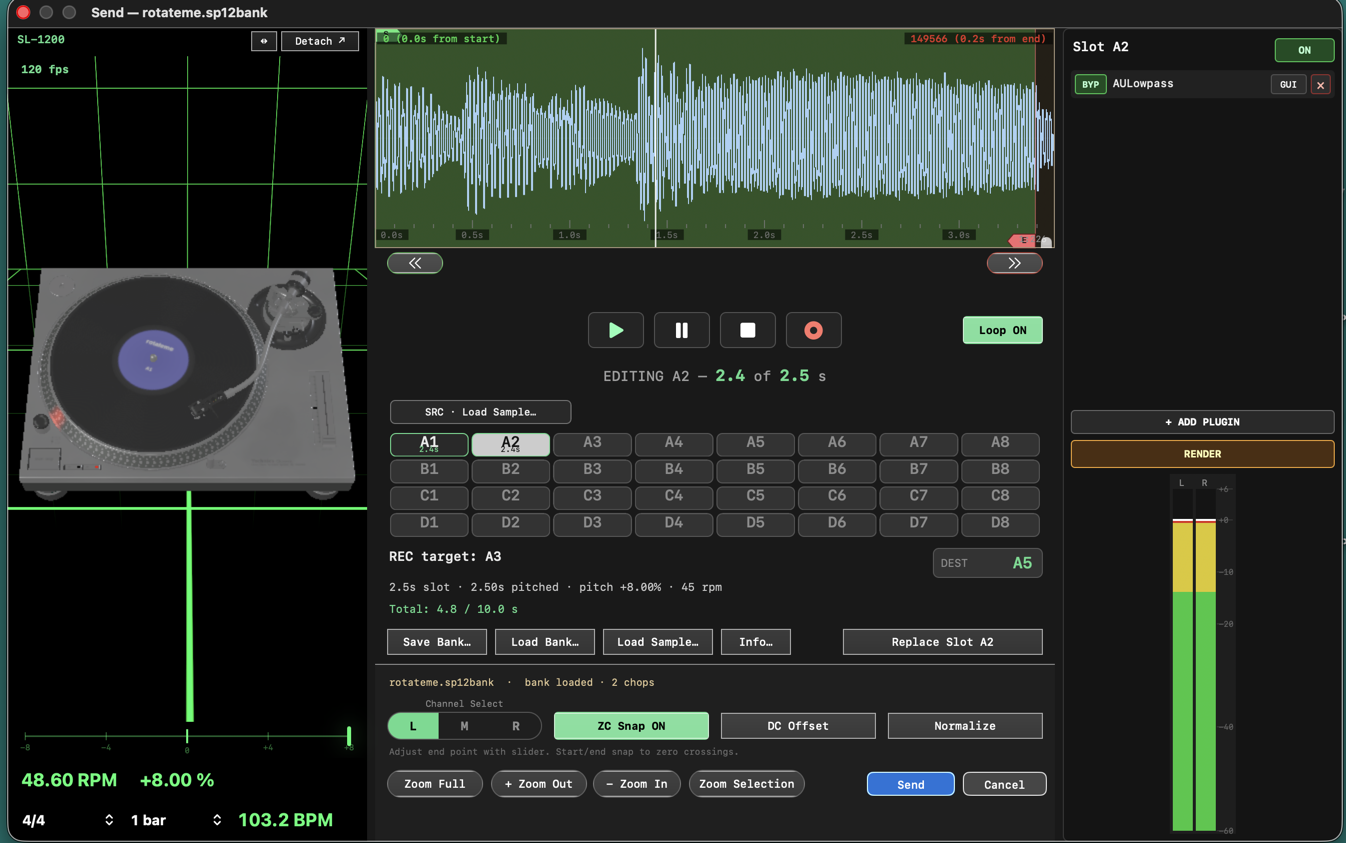
The full workstation. Wave + 32-slot chop bank on the left (DAW-standard selection editing, REC, marker handles, Insert New Region, Freeze Pitch). Virtual SL-1200 turntable in the middle (3D pitch fader ±8 %, 33⅓ / 45 RPM, motor physics, tonearm cue + scratch). AU2 / AU3 plugin chain channel strip on the right (per-plugin BYP, master ALL/BYP, native AU view hosting, post-effect VU meter, RENDER bake).
Main panel
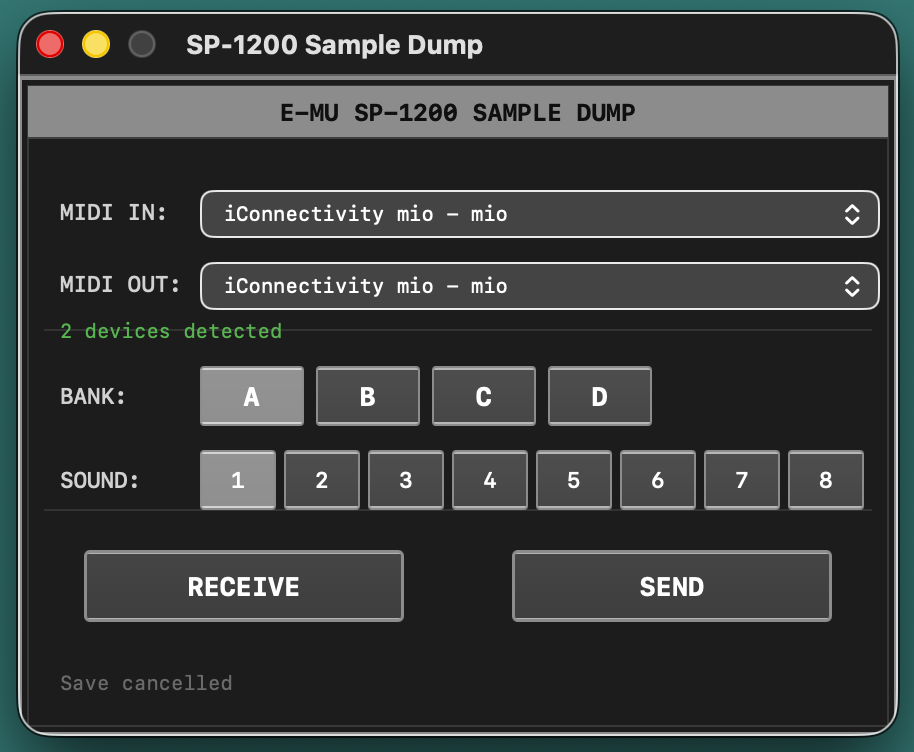
The dispatch point for every transfer. MIDI IN / MIDI OUT pickers (hot-plug aware, last-used selection persists across launches). 4×8 bank/sound grid for the destination address (A1–D8). RECEIVE arms the SDS listener; SEND opens the file picker into the send preparation panel above.
About
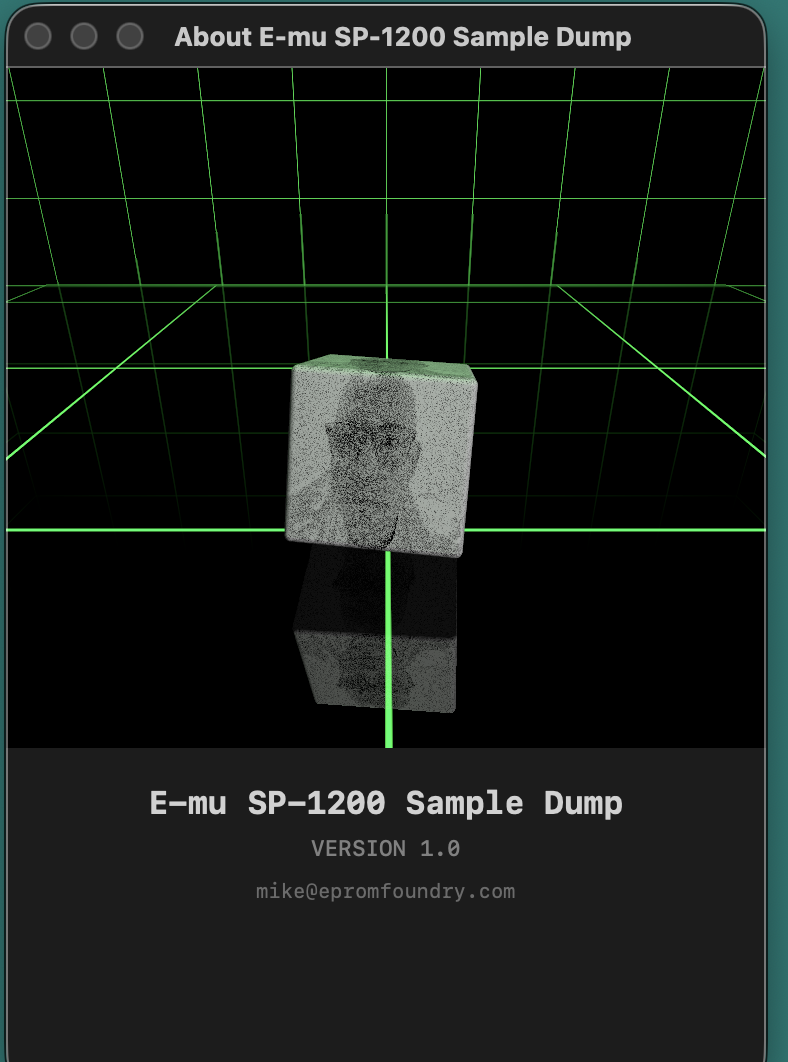
SceneKit-rendered animated cube + version info. Native frameworks only — Cocoa, Metal, MetalKit, CoreMIDI, CoreAudio, AudioUnit, AVFoundation, AudioToolbox, QuartzCore, SceneKit. No third-party libraries in the binary.
Engineered for the parts most users don't see.
Sample Dump Standard is a finicky protocol — packet-based, ACK/NAK
handshaked, with strict timeout windows and per-packet checksums.
Getting it right end-to-end is the whole job.
Full handshake, not fire-and-forget
Every packet is acknowledged or retransmitted per the MMA Sample Dump Standard. Wait/Cancel responses from the SP-1200 are honored; timeouts cause clean recovery instead of a silent partial transfer.
26.04 kHz, 12-bit complement-offset binary
Audio is decoded to float, resampled to the SP-1200's exact 26.04 kHz rate using AVAudioConverter's mastering algorithm, then re-encoded into the 12-bit complement-offset-binary format the SP-1200 expects on the wire. No loss beyond what 12 bits can hold, no off-by-one truncation.
Zero-crossing snap on region edges
When trimming a longer file down to a 2.5 s slot, both the start point and the end slider snap to the nearest zero crossing in the source waveform. This eliminates the click artifacts that vintage editors used to leave at slot boundaries.
Live audition before commit
Both the send-prep and receive-save panels include a Play button that auditions the exact 12-bit-quantized signal at the SP-1200's native rate, monitored at 44.1 kHz so you hear the result you're about to commit before MIDI runs.
Graceful size-mismatch handling
If the SP-1200's slot is shorter than what the app is sending, the SP-1200's firmware truncates cleanly per the dump spec — and the app reports a successful transfer. No partial-write corruption, no protocol stalls.
App Sandbox + hardened runtime
The app ships sandboxed with no network entitlement and no library-validation bypass. File access is limited to user-selected files; MIDI access is brokered through the system. App Store review-ready out of the box.
Specifications
Platform
macOS 12 Monterey or later, Apple Silicon (arm64)
Hardware
Any class-compliant USB or DIN MIDI interface connected to the SP-1200's MIDI IN and MIDI OUT
Protocol
MMA MIDI Sample Dump Standard — byte-and-timing exact per the specification published by E-mu Systems in the SP-1200 owner's manual (1987)
Sample rate
SP-1200 native 26.04 kHz internally; arbitrary input/output rates via AVAudioConverter (mastering algorithm, max quality)
Bit depth
SP-1200 native 12-bit complement-offset binary; 16/24-bit and 32-bit float supported on the macOS side
Slot capacity
32 pads (4 banks × 8 sounds), 2.5 s maximum per pad, ~10 s total sample memory
 Mac-side workstation for the E-mu SP-1200